People often gets confused about the terms used to describe dimensions. - Dimension, Shortcut Dimension, Global Dimension - are they same or what? Why we need so many different dimensions?
To understand the concept you need to go back to history of Navision and also need to understand the basic concept of Dimension. Let me try to elaborate it.
Dimension: Dimensions are nothing but parameter for your analysis of data. In other words, they are additional information attached to your tansactions and you can analyse / summarize your transactions on the basis of those parameters. Say, you want to analyse your fuel expenses on the basis of Car no. So you need to define a dimension called 'Car' and put all the car nos in the dimension value list.
Similarly, if you need to analyse telephone expenses on the basis of Telephone nos or travel expenses on the basis of employee nos then, you will define Telephone and Employee Dimensions and list down the dimension values for those dimensions. So at the end you can have a list of dimensions & their values as below:
--- Car --- 1001 --- WB 300356
--- 1002 --- UP5005333
--- 1003 --- DEL678932
--- Tel --- 98444320 --- Ashsih Banerjee
--- 87909098 --- Snehanshu Mandal
--- Emp --- 1001 --- Snehanshu Mandal
--- 1002 --- Vinay Iyer
--- 1003 --- Shridhar Varasala

You can define the dimension in Navision from 'Financial Management > General Ledger > Setup > Dimensions > Dimension'. And then define the respective dimension values.
This way you can define any no of dimensions and attach any no of dimension values while entering any transaction in the system.
Now that's was Dimension. So what is global dimension? Lets go back few years down to navision's history.
There was time when navision didn't have the facility to attach unlimited no of dimensions to transactions. Instead it had only 2 fixed dimensions with each transactions - Department & Project. And to attach these 2 dimension with each transactions, Navision had created these 2 fields in all the transaction tables (e.g in 81 - Gen. Journal Line, 36 - Sales Header, 37 - Sales Lines, 38 - Purchase Header, 39 - Purchase Header and so on). See the figure below.

Now you can't just keep on adding new fields in each transaction table to achieve unlimited no of dimension attachment feature. So navision started storing dimension informations attached to different transactions in 2 separate tables (Journal Line Dimension - for storing dimensions attached to all journal transactions, Document Dimension - for storing dimensions attached to all document type of transactions). So Navision came up with a different method of storing dimension values attached with transactions.
What happened to the 2 fields present in all transaction tables? To reuse these 2 fields, Navision came up with a concept called 'Global Dimensions'. So 2 dimensions from your dimension master can be defined as Global Dimension and their values can directly be attached with any transaction (in those 2 fields present globally - They automatically take the caption of global dimension defined and displayed accordingly to users - using 'CaptionClass' property). Just because they are present in all the transaction tables, these dimensions make it easier to take out reporting based on these 2 dimension and helps you in easy data entry. Ideally they are the most commonly used dimensions accross in Navision Company.
So global dimensions are nothing but ordinary dimensions. Only thing they are globally present in the system and helps in data entry (dimension attachment) and reporting on most commonly used dimensions in a company.
But if you are going to attach more than 2 global dimensions in transactions, then the very attachment of dimension process is slightly lengthy. I mean you need to click on the transaction line > click on button 'Line' > Dimensions > Select the dimension code and dimension value.
Can we make it little easier for data entry where more than 2 global dimensions you need to attach to transaction? Off course we can. Use the concept 'Shortcut Dimensions'
Shortcut Dimensions: There can be 8 dimensions displayed directly on any tabular transaction form (Journal lines or Purchase Lines, Sales Lines etc) just to facilitate the data entry. Remember, these dimension will not be present directly in the table but only displayed in the form. They are shortcuts to 8 different dimensions. So that you don't need to go for the lengthy dimension attachment process. That's why the name came 'Shortcut Dimension'. And the 2 global dimensions automatically gets assigned as first 2 shortcut dimensions. (Check out the General ledger setup).
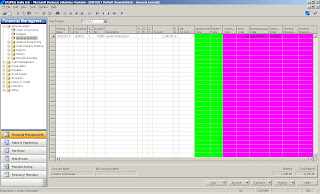
See the screen left (General Journal) and you will find there are 8 dimensions present (coloured columns). These are 8 shortcut dimensions. First 2 are global dimensions (directly present in the Gen. Journal Line table - the transaction table used here) coloured green are automatically became first 2 shortcut dimensions. Rest 6 columns are just displayed in the form only to facilitate the data entry (not present in the Gen. Journal Line table). If you enter some values in those columns, system will insert the relevant dimension and dimension values in the journal line dimension table for the transaction. If you enter values in first 2 shortcut dimensions, they will be inserted in the global fields present in the current transaction tables as well as the journal line dimension table.
That's the
funda of Dimension, Global Dimension and Shortcut Dimension. Hope i am able to clear the idea a little bit. If you want to discuss it further, do send me your comments or simply fire a mail to me (
snehanshu.mandal@gmail.com).
See you in next post.


![Reblog this post [with Zemanta]](http://img.zemanta.com/reblog_e.png?x-id=3554862f-90c8-435f-95b2-b5a2ca30d021)


 Posts
Posts

